OPAC User guide
Information
OPAC can search for "Local data base" (✽1) (✽2) and "Various data bases" (✽3) .
- ✽1
- Local Database is the online catalog databases of academic materials (books, serials and audio visuals) in the collections of your university.
- ✽2
- The Kanji dictionary used in the local database search is based on the Kanji Unification Index (created by National Institute of Informatics with the cooperation of Mr. Yasunori Wakayama , formerly of Reitaku University).
- ✽3
- Various data bases are accessible data bases to serve (CiNii Books・CiNii Research・IRDB) of providing of National Institute of Informatics.
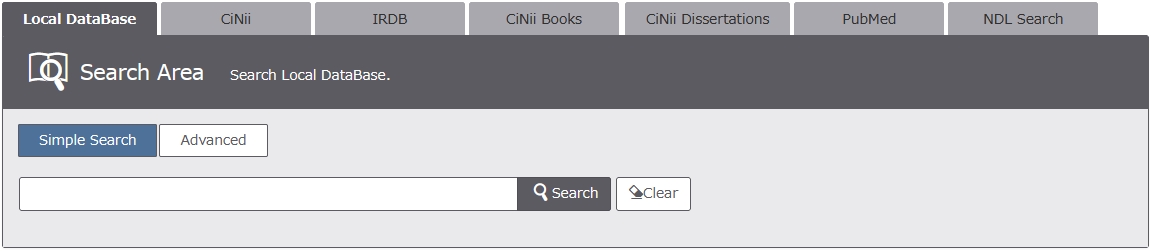
Simple Search
It's explained about a simple search of a local data base.
■ Database
Please choose a database to use.
Retrieval word is taken over to each data base.
■ Keyword Search
You can enter search terms to the frame.
You can do a multiplication of search words.
Please see
here for input method.
■ Search button
Click "Search" to begin the search.
■ Clear button
It returns to the initial state when clicking.
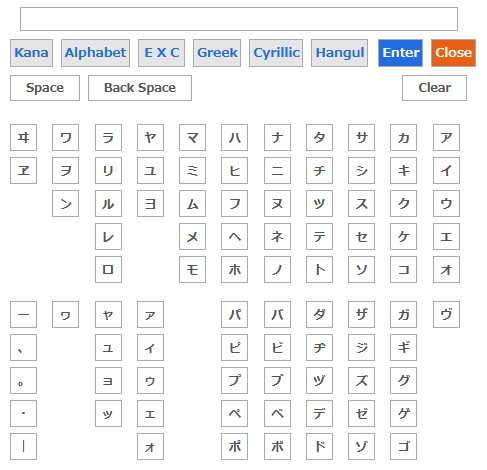
■ Auxiliary input (Keyboard)
When the link of KeyBoard is clicked, the keyboard will be displayed in a separate window.
Search terms, you can enter on the keyboard.
■ Switching of the search screen
The simple search can be switched to the Advanced retrieval by pushing the link.
■ Return to OPAC TOP
Click the logo on the top left to return to the top page.
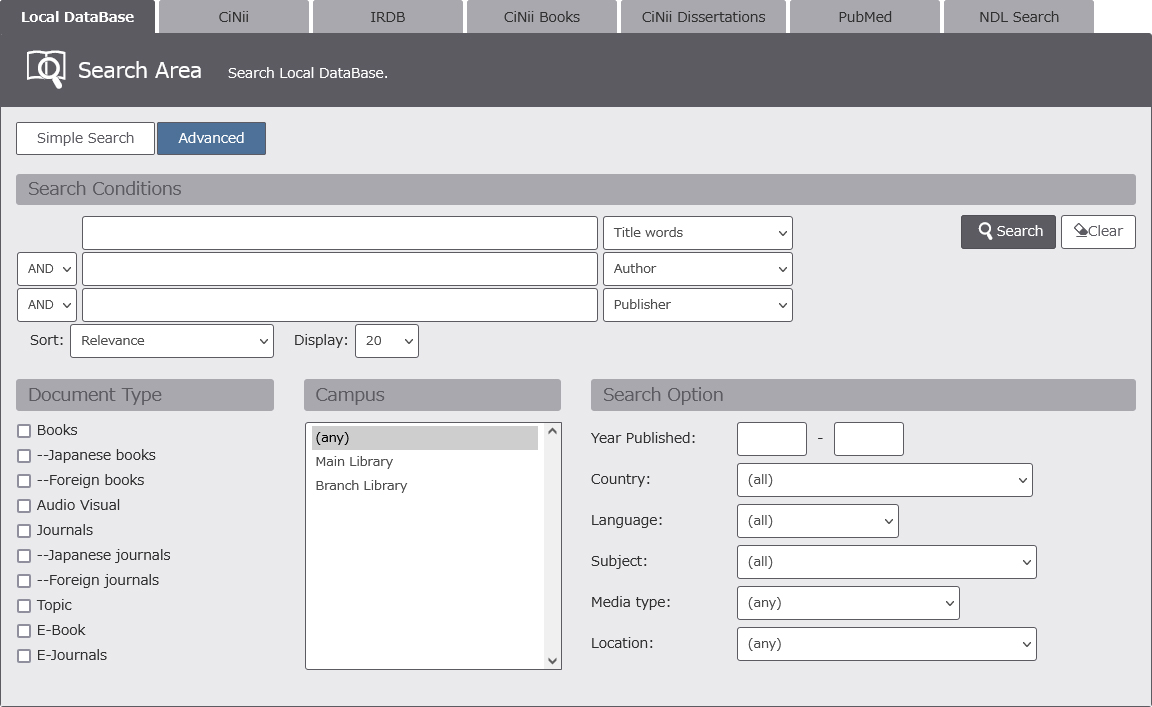
Advanced Search
It's explained about a Advanced search of a local data base.
■ Database
Please choose a database to use.
Retrieval word is taken over to each data base.
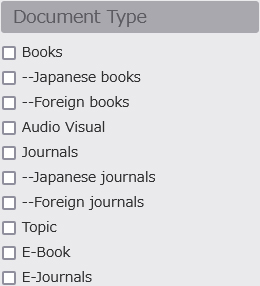
■ Search subject
You can search by specifying the type of material.
Since the decision of whether books or magazines is difficult material also, if there is no reason to narrow, it is recommended that you search without specifying.
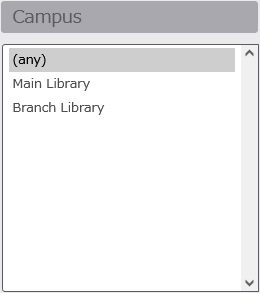
■ Campus
It is possible to retrieve it by specifying the owning pavilion (library and laboratory).
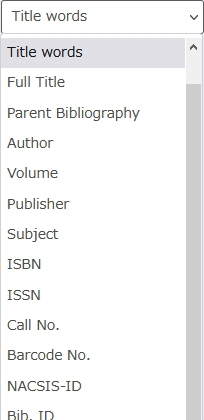
■ Search Items
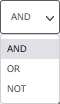
■ Logical operation
You can search using logical operations.
Please see also
here.
■ Year Published
You can search by year of publication.
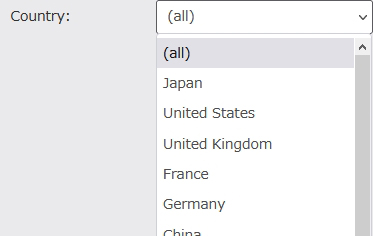
■ Country
You can search by specifying the country of publication.
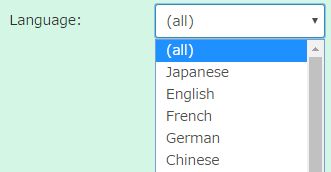
■ Language
You can search by specifying the language.
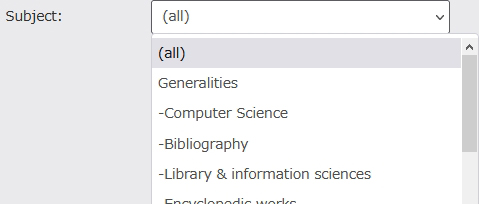
■ Subject
You can search by specifying a category.
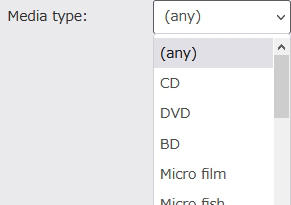
■ Media type
You can search by specifying the media type.
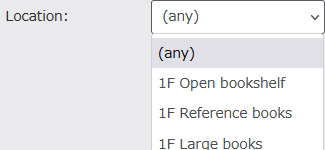
■ Location
You can search by specifying the Location.
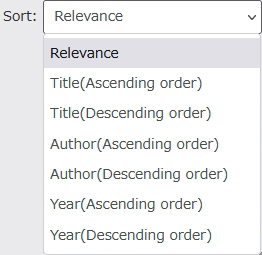
■ Sort
The retrieval result can be specified in the ascending order or the descending order.
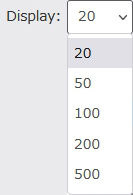
■ Display
The maximum number of displays of the list a page can be specified.
■ Search button
Click "Search" to begin the search.
■ Clear button
It returns to the initial state when clicking.
■ Auxiliary input (Keyboard)
When the link of KeyBoard is clicked, the keyboard will be displayed in a separate window.
Search terms, you can enter on the keyboard.
■ Change of the search screen
The advanced search can be switched to the simple retrieval by pushing the link.
■ Return to OPAC TOP
When you click the top left of the logo, go to the top page.
Detailed input method of retrieval word
It explains a detailed input method in the local data base retrieval.
■ General rule
- Can be typed in either upper case or lower case (such as abc, ABC, or Abc ).
■ Title / Series name
- Please type full or partial title or series name.
- Various characters (✽) can be used.
✽ kanji・hiragana・katakana・the Roman alphabet・full-width Cyrillic alphabet・full-width Greek alphabet
■ Author / Editor name
- Please type full or partial author or editor name.
- The name of the westerner is input by an original spelling. When the translated book is published, it is likely to be able to retrieve it by Japanese Yomi.
■ Publisher
- Please type the name of publisher.
■ Subject
- Please type subject."Subject" is defined by some subject headings (BSH, NDLSH, MESH, LCSH, etc.).
■ Volume
- You can search for "volumes" registered in the bibliography.
■ ISBN
- International Standard Book Number (ISBN) is a unique number to identify books.
- The hyphen "-" can be omitted.
- XISBN can be used here.
■ ISSN
- International Standard Serial Number (ISSN) is a unique number to identify journals.
- The hyphen "-" can be omitted.
- XISSN can be used here.
■ Standard classification number
- In the case of OPAC, it can refer to both "Classification Type: Classification Table Number", and the "Classification Table Number".
■ Holding classification
- You can search the classification number registered for the materials in our collection.
■ Call Number
- The number in which Class number, Author symbol, and Vol. No. and number of books are matched can be retrieved.
(It is a number of the label pasted to the back cover etc. of material. )
■ Bibliography ID
- It is possible to retrieve it by bibliography ID given to the bibliography of a local data base.
■ Barcode Number ( Book ID )
- It is possible to retrieve it by the number given at the time of each school owning.
※ It is a bar code number pasted to the cover or the back cover etc. of material.
■ LCCN
- The LC card number can be retrieved to eight digits by regularizing it by replacing the hyphen with 0.
■ NDLCN・NDLPN
- With National Diet Library Card Number (NDLCN) and National Diet Library Periodical Number (NDLPN), I can search it.
■ CODEN
- You can search in the magazine name identification code. CODEN is the number that "American Society for Testing Materials" gives.
(after 1975, "Chemical Abstracts Service" gives it)
■ NACSIS ID ( NCID )
- In bibliography ID (NCID) of NACSIS-CAT, I can search it.
■ NBN Number
- It is possible to retrieve it by the number that National bibliography making organization gave.
■ Common Code
- Journal Code and, school unique number, you can search in a common code.
■ Other codes
- When standard numbers other than ISBN, XISBN, ISSN, NBN, and NDLCN are registered in "Other codes", it is possible to retrieve it.
Prefix search
When you input "* (asterisk)" to an end of retrieval word, and search, you can do a match search.
Please input it without putting the space between the retrieval word and " * ".
When the retrieval term like the above-mentioned example is input, "community" or "communication", etc. can be retrieved.
Exact match search
Exact matching search can be done by typing "#" at the beginning of the search terms.
In the detail retrieval, when the following item is selected from the pull-down, the exact match search can be done.
- Title Words
- Auther
- Publisher
- Subject
- Any(Keyord)
If you enter a search term like the example below, only "beautiful life" that exactly matches the search term will be searched.
Partial match retrieval
The partial matching search can be done by surrounding the search terms with a parenthesis.
It is effective when retrieving it without dividing the retrieval word.
In the detail retrieval, when the following item is selected from the pull-down, the partial match retrieval can be done.
- Title Words
- Auther
- Publisher
- Subject
- Any(Keyord)
If you enter a search term as shown in the example below, all words containing "History Dictionary" will be searched, such as "Tokyo History Dictionary" and "European History Dictionary Series".
Logical operator
■ A and B [AND]
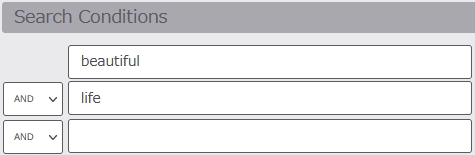
When search terms are typed to two or more items and "AND" is selected, materials that agree with both terms are searched.
Material including word "beautiful" and "life" is searched.
You can search like the above-mentioned by putting space between two words or putting "*".
However, the title of a book (complete type) and the author name are excluded from it.
Search to put "*" between the two words.

When you search by typing space between two words.

■ A or B [OR]
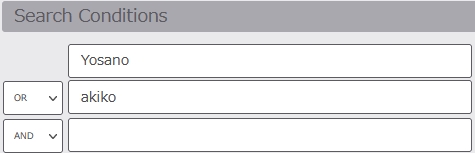
When search terms are typed to two or more items and "OR" is selected, materials that agree with either two search terms are searched.
Material including word "Yosano" or "akiko" is searched.
If the search term is delimited by "△+△", we will search for data containing one of the search terms.(△ stands for a space)
When it is separated by "+".

■ A not B [NOT]
When "NOT" is selected, materials including the second word are excluded though materials including the first word are searched.
Materials including word "Bronte" are excluded though materials including word "Charlotte" are searched.
When the search term is delimited by "△−△", search data that does not include the latter among the data including the former.(△ stands for a space)
When it is separated by "−".